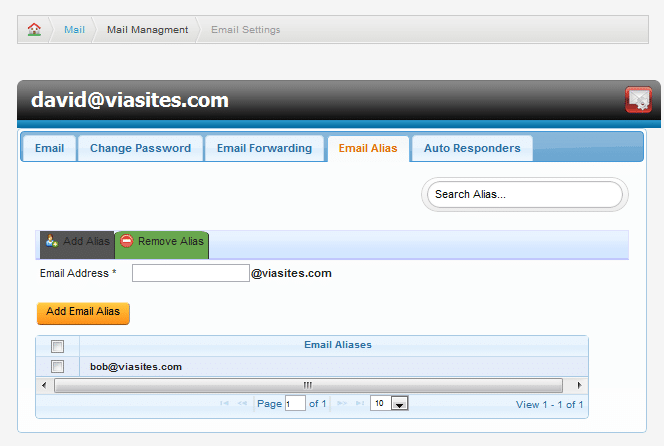
To access the advanced email functions for an email account, select the checkbox next to the mail account you wish to modify, and click Modify Email Account. This will bring you to the Email Settings page.
Creating an email alias is similar to email forwarding, except any email sent to that alias will be sent to specified accounts. This will allow an individual to create lists that send to multiple accounts (i.e. sales@yourcompany.com would be an alias that automatically sends to every member of your sales team). From the Email Settings page, click Email Alias, then Add Alias. Enter the alias you would like to create and then click the “Add Email Alias” button. To delete an alias, simply check the box next to the alias you wish to delete and click Remove Alias. This will bring up a confirmation window; simply click Confirm to delete the alias.