Accessing the WMT (Website Management Tool)
The WMT is where you will make most of the changes to your hosted accounts, from setting up email and ftp accounts to managing 1-Click Installation Applications.
Accessing the WMT is simple:
- First, click on the Web Accounts Icon in the Main Panel of SMT6.
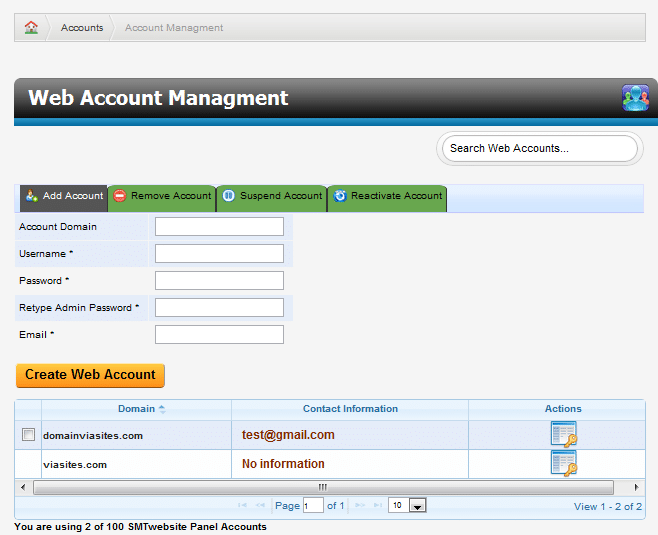
- Then, click on Website Manager. Here you will see a list of all the domains associated with your account, their contact information, and the icon that will allow you to access the WMT.
- Finally, click on the Icon under Actions for the domain you wish to access. This will open the Website Management Tool for that domain.