

To access Domain Management, click on Domains from the WMT and then click Sub Domains on the next screen.
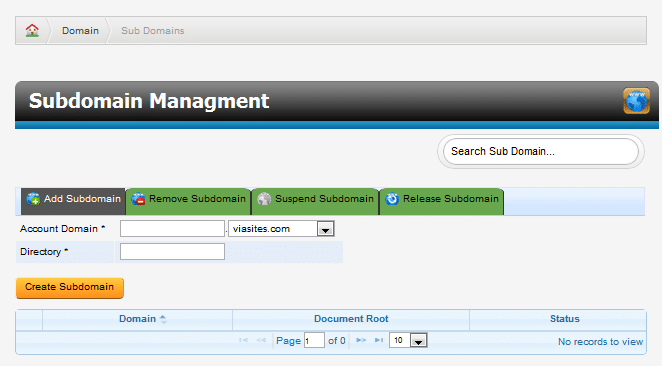
Adding a Subdomain
Add a subdomain to your account by clicking the Add Subdomain tab, and then enter in the domain you wish to add & the name of the storage directory for the subdomain. Click on Create Subdomain and then confirm on the next screen to complete the process.
Removing a Subdomain
To remove a subdomain from your account, check the box next to the subdomain you wish to remove and then click Remove Subdomain. Confirm on the next screen to remove the subdomain.
Suspending a Subdomain
To suspend a subdomain, check the box next to the subdomain you with to suspend and click Suspend Subdomain. Click confirm on the next screen to finalize the process.
Releasing a Subdomain
To release a subdomain from suspension, check the box next to the subdomain you wish to modify and click Release Subdomain, then click confirm on the next screen and that subdomain will be reactivated.