

If you find yourself in need of a password reset for your WordPress credentials and you are able to log into your My Account. Use the steps listed below to reset wordpress admin password using phpmyadmin.
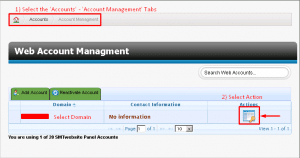
Step 1: Once you log into your control panel, you will enter your account management tab, and then select the action button for the domain you wish to edit.
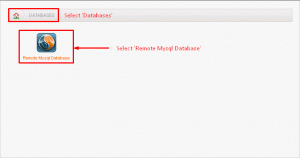
Step 2: Once you enter your configuration you will select ‘Databases’ and then proceed to your SQL database.
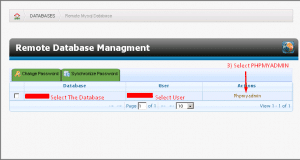
Step 3: You will see the options for selecting the PHPMyAdmin selection.
Step 4: You need to at this point get together a password hashed out in MD5 that you wish to utilize. You can view the link below to a free password generator.
Step 5: Select Users on the left hand side and edit the user you wish to have the password changed for.

Step 6: Save changes and Verify you are able to log in with new credentials.