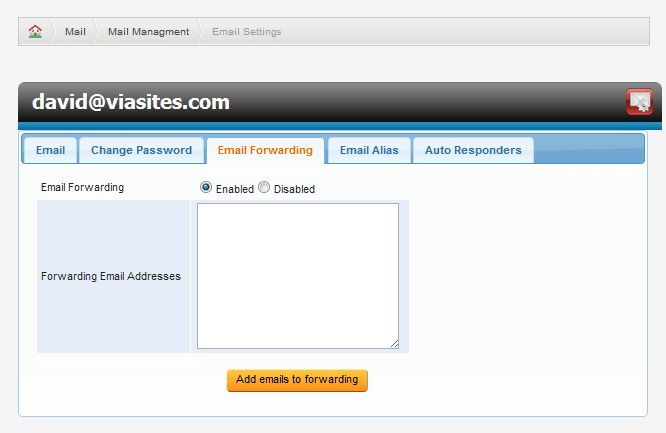
To access the advanced email functions for an email account, select the checkbox next to the mail account you wish to modify, and click Modify Email Account. This will bring you to the Email Settings page.
Email Forwarding (single and mail lists)
To begin, first click the Email Forwarding Tab from the Email Settings page. From here, choose whether forwarding is enabled or disabled. Enter the email address you would like the email for this account to be forwarded to. Use a comma (,) to forward to multiple email addresses, or list each email address on a single line. Select the ‘Add emails to forwarding’ button to confirm your changes. This feature combines previous SMT options for email forwarding to a single email account, and Mail List options.